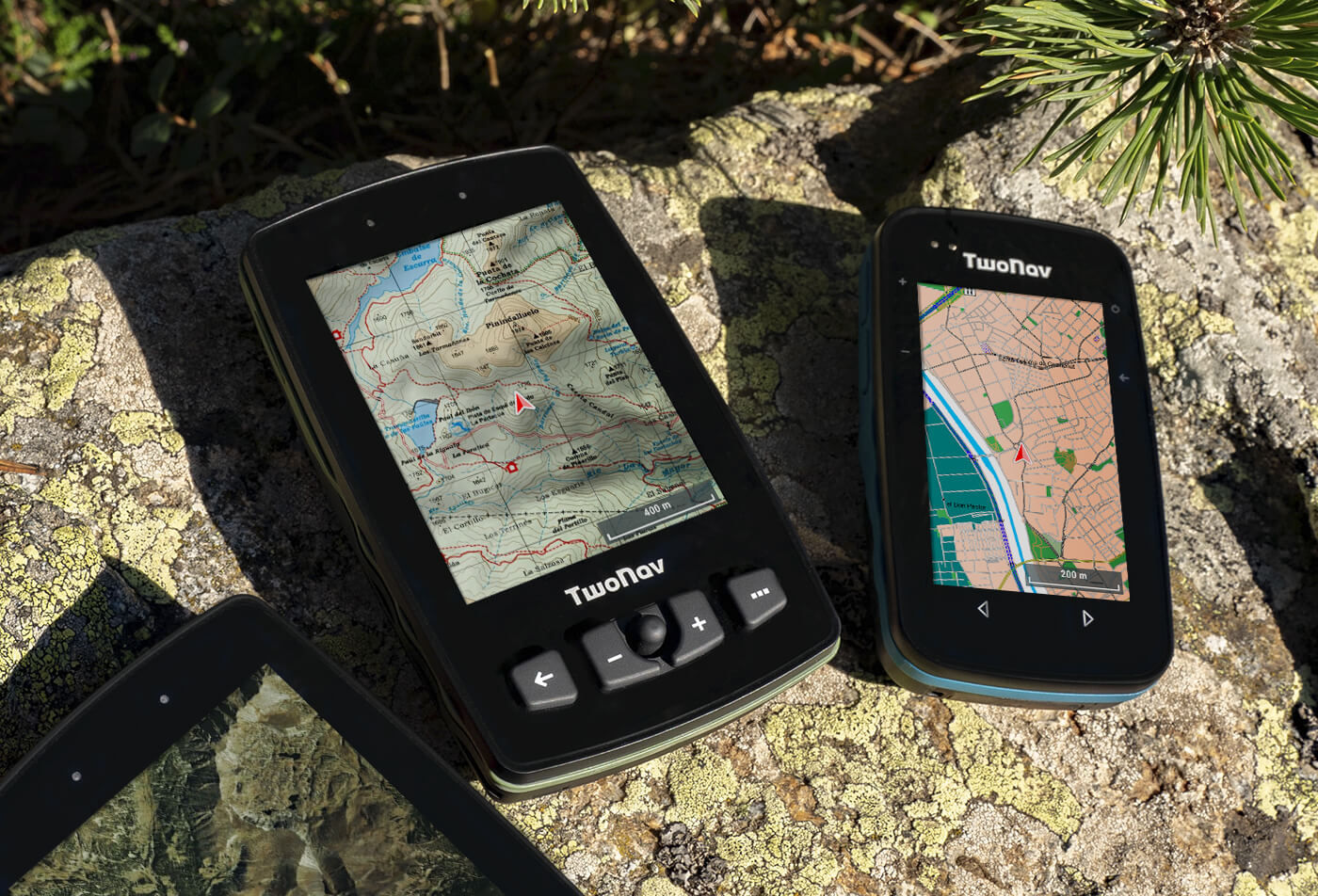
Got a GPS unit? A GPX file? A phone? Let's connect the three. Pick your device.
Before you start, for every device
- 01 Download the GPX file to your phone and save it somewhere easy to find, usually Downloads or the Files app.
- 02 Make sure the device is charged, switched on and paired with your phone in the maker’s app, via Bluetooth.
- 03 Most apps need an internet connection while importing, so do it at home, not at the trailhead.
- 04 After uploading, check the route length on the device matches the length on the site. It’s the simplest check that the file is fine.
- 05 Ride a few hundred metres near home and make sure the route runs in the right direction.
Broken GPX file (jumps, bad points)? GPS Heaven fixes it
- 01 Load the GPX file into an app with offline maps, like Mapeak, or OruxMaps on Android.
- 02 Download the area map at home, while you have internet.
- 03 On the trail, switch to airplane mode when you don’t need signal. Location keeps working.
- 04 Carry a power bank.
TwoNav
Requires the TwoNav Link app (Android and iPhone).
- 01 One-time pairing: on the device go to Main Menu → Settings → Smartphone → Pair, and confirm in the TwoNav Link app on your phone.
- 02 Find the GPX file on your phone, tap Share or Open with, and choose TwoNav Link.
- 03 In the app choose Send to paired device, and the file transfers over Bluetooth.
- 04 On the device: on the map screen tap Start → Follow a route, pick the route and tap Go.
- 05 Building routes in LAND? Right-click the route → Share → Download to my devices, and the device downloads it on Wi‑Fi. You can also copy it by USB into the Data folder.
Garmin Edge
Requires the Garmin Connect app.
- 01 Make sure the device is paired with the Garmin Connect app.
- 02 Android: open the file and choose Open with Connect. iPhone: save the file in Files, tap Share and choose Connect.
- 03 Choose the activity type, Mountain biking, name the course and save.
- 04 Check the distance shown matches the route distance on the site.
- 05 In Courses open the route, tap the three dots → Send to Device, and pick your device.
- 06 On the device: Navigation → Courses, pick the route and go. You can also import via the Garmin Connect website: Training → Courses → Import.
Wahoo ELEMNT
Requires the Wahoo app.
- 01 Make sure the ELEMNT is paired with the Wahoo app on your phone.
- 02 Open the GPX file on your phone and choose the Wahoo app. When asked whether to import, choose Yes.
- 03 In the app: Explore → My Collection → My Routes, and pick the route. You can also import from there via + → Import a file.
- 04 Tap Send to ELEMNT, and the route transfers to the device over Bluetooth.
- 05 No phone? Connect the device to a computer by cable and drag the file into the routes folder.
Hammerhead Karoo
Done through the Hammerhead Dashboard website.
- 01 Go to dashboard.hammerhead.io and sign up if you haven’t yet.
- 02 In the sidebar choose Routes → New Route → Import, and pick the GPX file.
- 03 The route syncs to the Karoo through the Hammerhead app on your phone. The phone needs an internet connection.
- 04 On the device open the route and check the distance before you set off.
- 05 File won’t import? Import it as a route in Strava, and it will sync to the Karoo from there.
Lezyne
Requires the GPS Ally+ app.
- 01 Make sure the device is paired with the GPS Ally+ app.
- 02 Tap the Navigation icon at the bottom, then the menu at the top → Create a Route. Make sure the screen is clear of points from a previous route.
- 03 Choose to import a GPX or TCX file and find it in the folder it downloaded to.
- 04 Tap Save to keep it, or Go to send it straight to the device.
- 05 Tip: a GPX file shows a line only. For turn-by-turn cues you need a TCX file. You can also upload via gpsroot.com → My Routes → Upload.
Bryton
Requires the Bryton Active app. Not every model supports route import.
- 01 Make sure the device is paired with the Bryton Active app.
- 02 iPhone: long-press the file → Share → Bryton Active. Android: open the file and choose Open with Bryton Active.
- 03 Name the route and confirm. Note: the name can’t be changed after import.
- 04 In the app: Course → My Routes, pick the route and check the length matches.
- 05 Tap the settings button at the top → Download to Device, and the route transfers to the device.
Route running backwards?
- 01 Most apps and devices can flip the direction: look for Reverse.
- 02 No such option? Reverse the file on a site like gpx.studio before loading it.
Battery
- 01 Keep the device screen on low brightness.
- 02 Turn off sensors you don’t need.
- 03 Top up from the power bank at every food stop.
- 04 On a multi-day trip: a spare cable and a small charger for campsites with power.